

How to make your own SimHub dashboard
Last updated · SimHub 9.11.22
A SimHub dashboard is a screen you build yourself out of gauges, text and images, wired to live telemetry from your game. You can show it on a second monitor, on your phone, on a small USB display, or as an overlay on top of the game. This walks through building one from an empty canvas — no template, no downloaded file — because once you have done it once, every dashboard you download afterwards stops being a black box.
You need SimHub installed and a game configured. Nothing else — Dash Studio ships with SimHub and there is nothing to buy to build a dashboard.
-
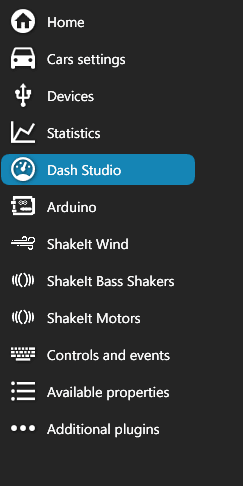
Open Dash Studio
Dash Studio is in the left-hand menu, between Devices and Arduino. That menu is the whole of SimHub's navigation: Home, Cars settings, Devices, Statistics, Dash Studio, Arduino, the three ShakeIt sections, Controls and events, Available properties and Additional plugins. If you are lost anywhere in SimHub, you are somewhere in that list.
-
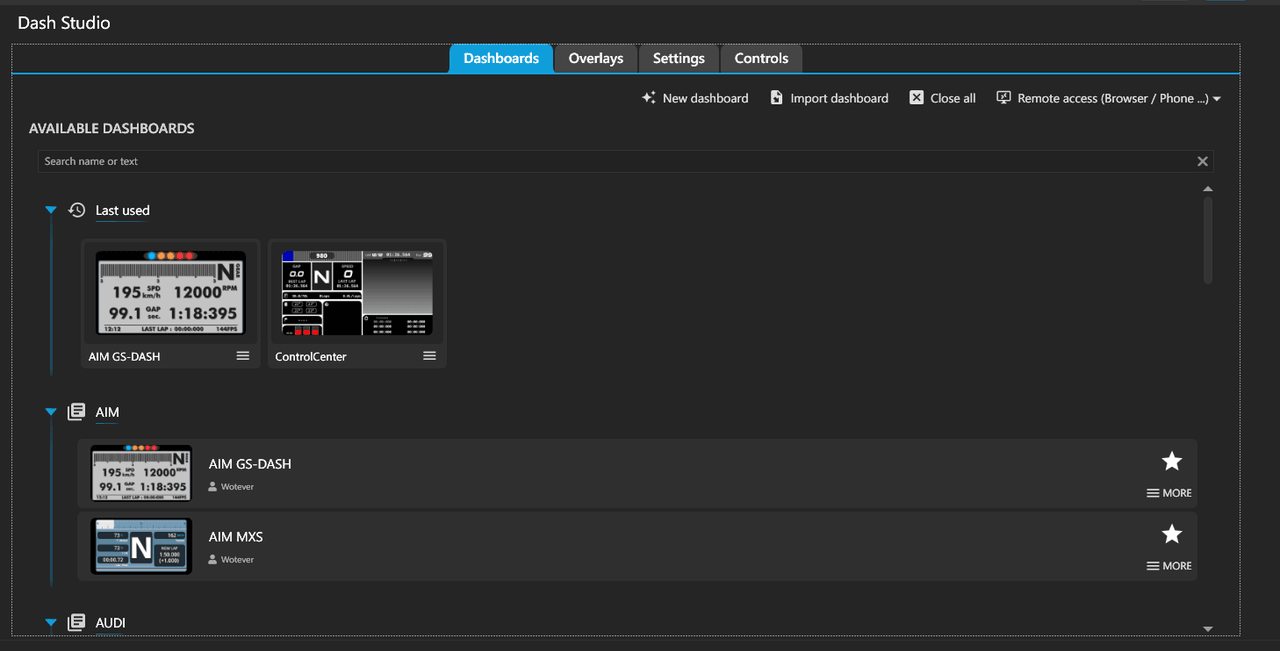
Find the dashboards list
The Dashboards tab lists everything installed, grouped by author or brand, with a Last used row at the top. The four tabs across the top are Dashboards, Overlays, Settings and Controls. The controls you want are on the right of the toolbar: New dashboard, Import dashboard, Close all, and Remote access.
-
Create a new dashboard and name it
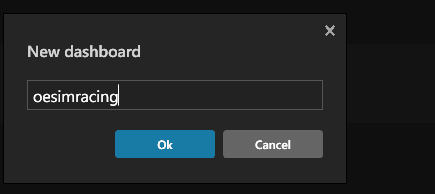
Click New dashboard. SimHub asks for a name, and that name becomes both the tab in the editor and the file it saves to — so give it something you will recognise in a list of thirty a year from now.
-
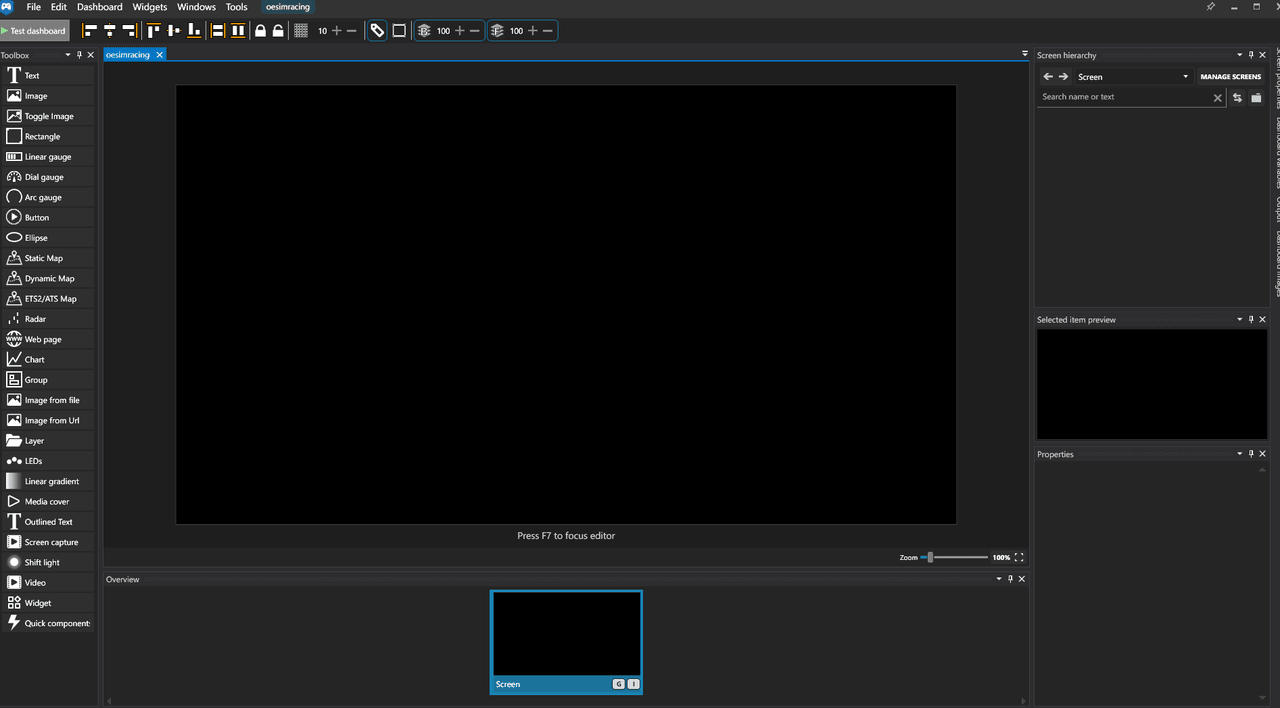
Meet the editor
You get an empty black canvas and three panels. On the left is the Toolbox — every widget you can place. On the right, Screen hierarchy lists what you have added and Properties configures whatever is selected. Along the bottom, Overview shows your screens: a dashboard can have several, and the six bindable actions let you page between them from a button on your wheel.
-
Place your first widgets
Drag from the Toolbox onto the canvas. Each item gets a label and a selection box, and the status bar reads out its exact position and size — here a linear gauge at
X1: 184x201, X2: 584x221, Size: 400x20. The keyboard shortcuts are worth learning immediately, because they are the difference between nudging something into place and fighting it: arrow keys move, Alt + arrow resizes, Ctrl + A selects all.Build it ugly first. Get the elements on screen and bound to the right telemetry before you spend any time on colour. A beautiful dashboard showing the wrong number is worse than a plain one showing the right one.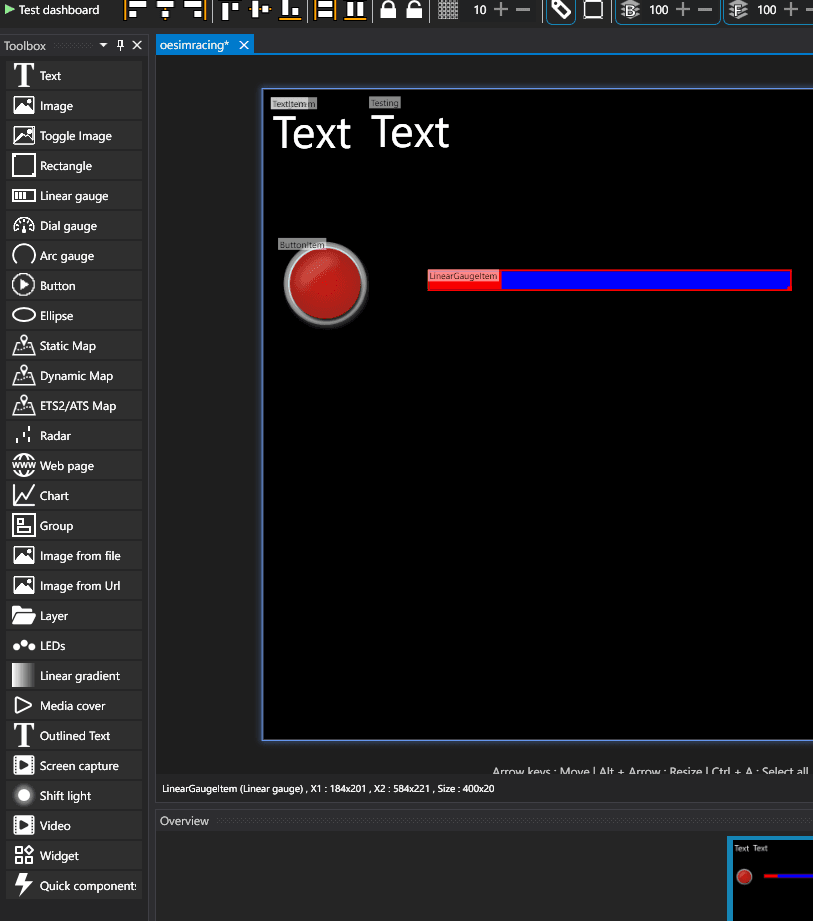
-
Run it
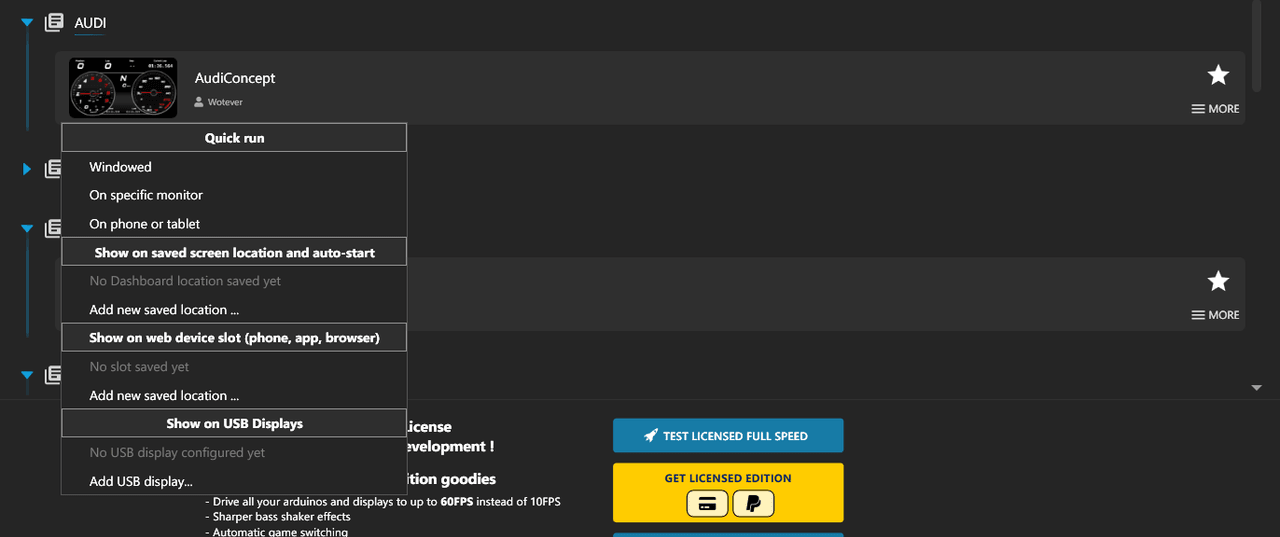
Back on the Dashboards tab, the menu on any dashboard gives you every way SimHub can display it. Quick run covers Windowed, On specific monitor and On phone or tablet. Below that, Show on saved screen location and auto-start remembers a position and opens there every time, Show on web device slot targets a phone, app or browser, and Show on USB Displays drives a physical dash unit.


Every widget in the Toolbox
Transcribed from the Toolbox in SimHub 9.11.22. There is no official widget catalogue anywhere — the wiki has one Dash Studio tutorial and no reference — so this is written down here because it did not exist.
Text and shapes
Gauges and indicators
Images and media
Maps
Structure and interaction
Common questions
Do I need the paid licence to build a dashboard?
No. Dash Studio is fully functional in the free version and there is no watermark or export limit on dashboards you build. The licence raises hardware update rates from 10FPS to 60FPS, which matters for LEDs and shakers rather than for a dashboard on a monitor.
What file does a dashboard save as?
A .simhubdash file. Double-clicking one with SimHub running installs it, and any custom fonts and images inside it unpack automatically — which is why dashboards you download from the community are a single file rather than a folder of assets.
Can one dashboard have more than one screen?
Yes. Screens are managed from the Overview strip along the bottom of the editor, and SimHub exposes six bindable actions — NextScreen, PreviousScreen and ActionA through ActionD — so you can page between them from a button on your wheel or button box.
Why is my dashboard laggy?
Most often it is not the dashboard. The usual causes are the GPU already sitting above 90% load, adaptive sync (G-Sync or FreeSync) interfering with how SimHub renders, or mismatched refresh rates across multiple monitors. An FPS limiter in the game is the first thing to try.
Can I edit a dashboard somebody else made?
Yes, and it is the fastest way to learn. Open an installed dashboard in Dash Studio and you get the same editor with all of its widgets in the Screen hierarchy — worth doing with one you like before building from scratch.
SimHub is developed independently by Wotever and is not affiliated with OESimRacing. Screenshots are of SimHub 9.11.22, taken 4 August 2026 — if the interface has moved on, the version stamp above tells you how far. More on what SimHub is and what it costs.