

How to make your phone a speedometer
Last updated · SimHub 9.11.22
Your phone already has a good screen, and SimHub can put a live speedometer, tachometer, gear indicator and lap timer on it while you drive — for free, with nothing to install on the phone. It takes about five minutes. This is the whole job, including the handful of things that stop it working, because almost all of them are one setting and none of them are obvious.
SimHub runs a small web server on your PC. Your phone opens it in a browser, over your home network. That is the entire mechanism, and understanding it is what makes the failures make sense: nothing is installed on the phone, nothing goes through the internet, and if the two devices cannot see each other on the network then nothing else you change will help.
-
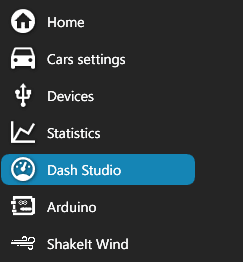
Open Dash Studio
It is in the left-hand menu, below Statistics. Everything to do with screens — on a monitor, a phone, a USB display or as an overlay — lives in there, so this is the only part of SimHub you need for this job.
-
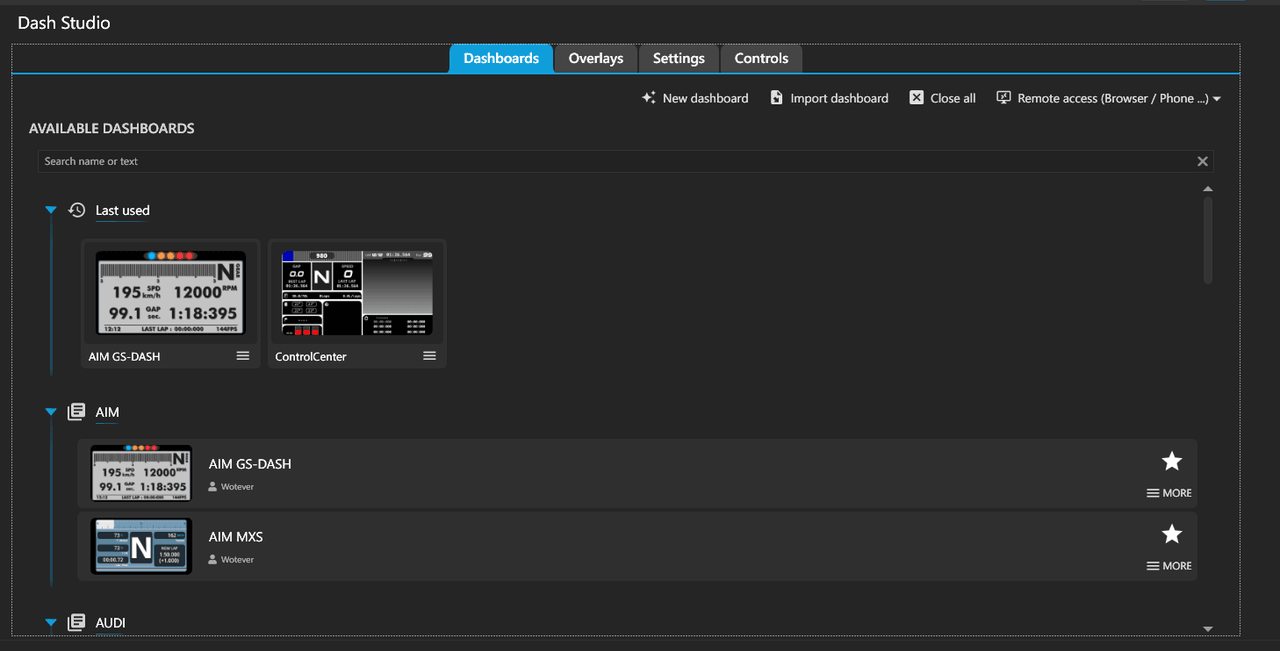
Pick a dashboard
The Dashboards tab lists what is installed, grouped by author. SimHub ships with a set, so you do not need to build or download anything to try this — pick one and come back later for the one you actually want. If you would rather make your own, that is a separate guide.
-
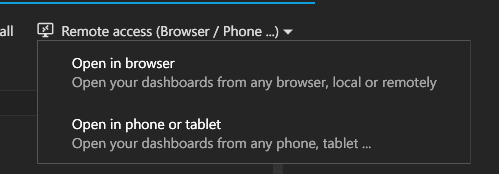
Open the remote access menu
Top right of the Dashboards toolbar: Remote access (Browser / Phone …). It gives you two choices — Open in browser for another window on the same PC, and Open in phone or tablet, which is the one you want.
-
Type the address, or scan the code
SimHub shows you an address that looks like
http://192.168.1.83:8888/and the same thing as a QR code. Scan it with your phone's camera, or type it into the browser. 8888 is the default port; SimHub also uses 8889. Note the dialog's own warning at the bottom — it is there because the firewall is the most common reason this does not work first time.It has to be http, not https. Modern phone browsers quietly upgrade addresses to https, and SimHub's server does not speak it. If the page will not load, check the address bar has not rewritten itself.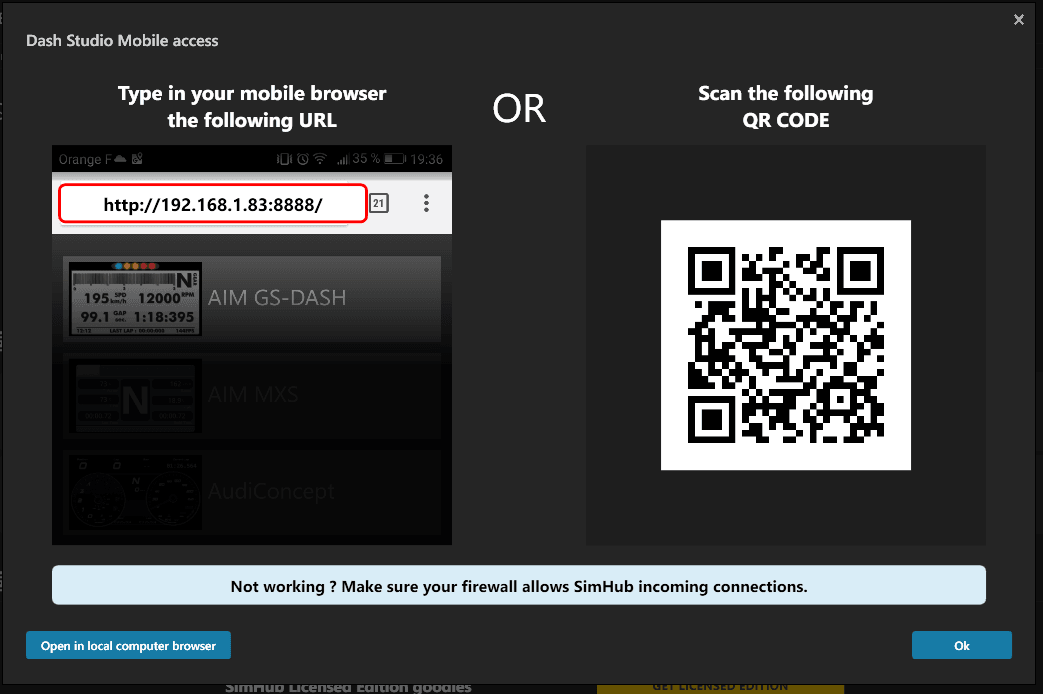
-
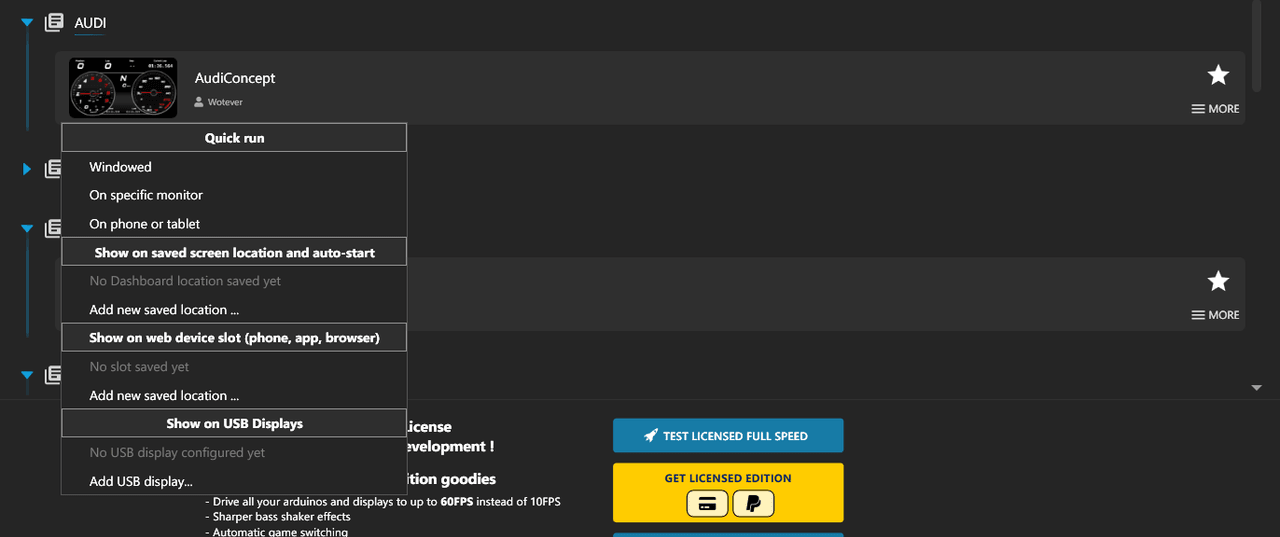
Make it open there every time
Once it works, you do not want to repeat this. On any dashboard's menu, Show on web device slot (phone, app, browser) saves that phone as a destination, so the dashboard opens on it automatically. The same menu handles a specific monitor, a saved window position, and USB displays.


If the page will not load
Nearly always one of these, roughly in the order they are worth checking. Start with the diagnostic — it splits the problem in half in about ten seconds.
The ten-second diagnostic
On the PC itself, open http://127.0.0.1:8888 in a browser. If that loads the dashboard list, SimHub is working and the problem is between your phone and your PC — firewall or network. If it does not, the problem is SimHub or the port, and nothing you do on the phone will fix it.
The firewall is blocking it
Windows Defender blocks SimHub's incoming connections by default. Allow SimHub on ports 8888 and 8889, and tick both Private and Public. This is the single most common cause and it is what the dialog's own footnote is warning about.
Your network is set to Public
A Windows network marked Public isolates your PC from other devices on it, which is exactly what you are trying to do. Set the connection to Private.
The browser forced HTTPS
Type http://ip:8888 — not https://. Phone browsers increasingly rewrite addresses to https automatically, and SimHub's server only speaks http. This one catches people who have done everything else right.
The two devices are not really on the same network
Guest WiFi isolates clients from each other by design. So do many WiFi repeaters and extenders, and a VPN running on either device will do it too. Put both on the same normal network with no VPN.
Another program has the port
Change the port in SimHub's settings to something unused — 10010, for example — and restart SimHub. It will not pick up the new port until it has been restarted.
Missing .NET Framework 4.7.2
The web server needs it. Note that Windows 10 versions 1507 and 1511 cannot install 4.7.2 at all — on those you need a newer Windows before this will work.
The phone or tablet is too old
iOS 10 or newer, Android 5 or newer. Use Chrome on Android and Safari on iOS — old stock Android browsers have rendering engines that cannot draw the dashboards. A Retina-era iPad is specifically called out as not working well.
The IP changed
Your router hands out addresses on a lease, so the PC's IP can change after a reboot. Re-open the mobile access dialog and check the address, or give the PC a fixed address in your router.
Common questions
Do I need to install an app on my phone?
No. It runs in the browser. There are SimHub apps on the app stores, but the browser method needs nothing installed and is what the in-app dialog points you at.
Does this work over mobile data or away from home?
No. The phone talks directly to your PC over your local network — nothing goes via the internet, and there is no cloud service involved. Both devices have to be on the same network.
Will this work with a console?
Only if SimHub can get telemetry from the console in the first place. SimHub always runs on a Windows PC; some console titles broadcast telemetry over the network that the PC can pick up, notably Gran Turismo 7 and the F1 series. The phone half works the same either way.
Is a paid licence needed?
No. Dashboards on a phone work fully on the free version. The licence raises hardware update rates from 10FPS to 60FPS, which matters for LEDs and bass shakers rather than for a screen.
My phone screen keeps turning off mid-race
That is the phone's own screen timeout, not SimHub. Set the display sleep to never while you are racing, or use a dashboard that requests a wake lock. On iOS, Guided Access also keeps the screen on and stops notifications covering the dash.
Can I use an old phone I don't use any more?
That is the best use for one. It needs iOS 10+ or Android 5+, a working screen and WiFi — nothing else. No SIM, no service.
SimHub is developed independently by Wotever and is not affiliated with OESimRacing. Screenshots are of SimHub 9.11.22, taken 4 August 2026 — if the interface has moved on, the version stamp above tells you how far. More on what SimHub is and what it costs, or build your own dashboard once this one is working.